That sinking feeling when you think your website might be hacked? Yeah, I know it well. Your site is basically your storefront, your business card, your reputation all rolled into one. And if hackers got in? They’re not just messing around. They’re stealing customer data, spreading malware, killing your Google rankings, and running scams with your name attached.
Here’s what really sucks though. Most people don’t figure it out until way too late. By the time you notice, Google’s already flagged you, customers are getting redirected to sketchy sites, and you’re looking at a massive cleanup bill.
Let’s make sure that doesn’t happen to you. I’m going to walk you through exactly how to check if your website has been hacked, step by step. And I’ve got a free scanner that’ll give you an answer in about a minute.
Step 1: Look at the Obvious Stuff First
Before you dive into any fancy tools, just look at your site. Open it up in an incognito window (so you’re seeing what everyone else sees) and check for these red flags:
Google’s throwing up warnings. If you see “This site may be hacked” or “Deceptive site ahead” when you visit your own website, that’s Google telling you they found something bad. Could be malware, phishing pages, spam, whatever. Point is, they know.
Your site goes somewhere else. Type in your URL and watch where it takes you. If you end up on some random spam site or a domain you’ve never heard of, that’s a redirect hack. Hackers love these because they steal all your traffic and use your site’s reputation to boost their scam operations.
Random pop-ups everywhere. Ads and pop-ups showing up that you definitely didn’t put there? That’s malware. And those pop-ups aren’t just annoying. They’re usually trying to trick people into downloading more malware or giving up their credit card info.
Your homepage looks totally wrong. Sometimes hackers just go all out and replace your entire homepage with their own content. Messages, images, links, the whole thing. It’s pretty rare but when it happens, you’ll know immediately.
Everything’s crawling or crashing. If your site suddenly went from fast to unbearably slow, or it keeps crashing for no reason, there’s probably malware running in the background. Could be crypto mining scripts, botnet stuff, you name it.
If any of this sounds familiar, don’t ignore it. Keep reading.
Step 2: Check Google Search Console
This is honestly the fastest way to know for sure. Google crawls billions of websites every single day looking for malware and phishing. And when they find something on yours? They tell you here.
Go to search.google.com/search-console, log in, and click on Security & Manual Actions > Security Issues.
If there’s anything listed there, your site’s been hacked. Google will tell you which pages are infected, what kind of malware they found, sometimes even how the hackers got in.
But here’s the thing. Even if you don’t see any alerts, that doesn’t mean you’re safe. Some hacks are built specifically to hide from Google’s crawlers. That’s why you need Step 3.
Step 3: Run a Proper Security Scan
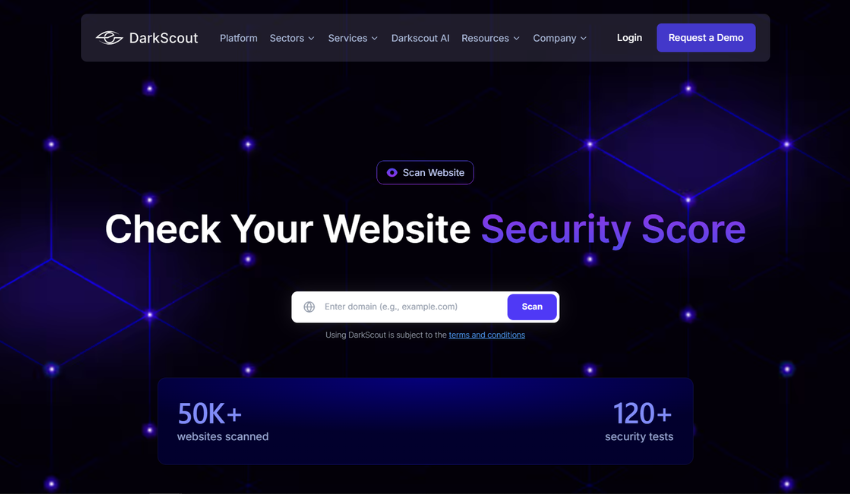
This is where you actually get a real answer. A good website security scanner checks for all the stuff you’d never catch on your own. SSL problems, security headers, cookie issues, outdated software, hidden malware, all of it.
Scan your website with DarkScout’s free scanner
It runs over 120 different security tests on your site in about 60 seconds. You’ll get a letter grade (A through F) that tells you how secure your site actually is. No signup, no credit card, just scan and see.
If you score below a B, you’ve got serious security holes that need fixing yesterday.
Step 4: Dig Into Your Files
If you know how to access your website files through FTP or cPanel, log in and take a look around. Hackers usually leave traces that scanners can’t pick up.
Look for weird files. Check your main folders, especially uploads and plugins. If you see PHP files with names that look like gibberish (like x7f3k.php or backdoor.php), that’s probably malware.
Check your .htaccess file. This file controls how your server works. If hackers mess with it, they can set up redirects or hide backdoors. Download it and make sure everything in there looks normal.
Look for sketchy code. Open up a few of your main files (index.php, wp-config.php if you’re on WordPress) and scan through them. If you see huge blocks of scrambled code or random base64 strings you didn’t write, that’s usually malware trying to hide.
When you get something suspicious, you do not want to delete it immediately. First make screen shots and write down all this so that you can do it all clean up without destroying your site.
Step 5: Check Your Hosting Account
Access your hosting control panel and check through all of your activity. You’re checking for:
New accounts you didn’t make. Hackers usually generate their FTP or database accounts to enable them to re-enter even after you have removed all the mess.
Weird traffic spikes. If your bandwidth or CPU usage jumped way up but your actual visitor numbers didn’t, that’s malware running scripts in the background.
Emails from your host. Hosting companies scan for malware all the time. If they found something on your site and sent you an email (or suspended your account), that’s your proof right there.
What to Do If Your Site’s Actually Hacked
Okay, so you confirmed it. Your site’s been hacked. Here’s what you do right now:
Take it offline. Put up a maintenance page while you clean things up. This stops more people from getting infected and keeps Google from crawling the hacked pages.
Change all your passwords. And I mean all of them. Hosting account, FTP, database, WordPress admin, everything. Make them strong and different from each other.
Clean out the malware. If you know what you’re doing, you can manually delete the infected files and fix the modified ones. If you don’t, hire someone or use a security service. Trying to DIY this when you’re not sure usually leaves backdoors that let hackers right back in.
Scan it again. Once you think everything’s clean, run that DarkScout scanner again. Make sure your security grade actually improved and the vulnerabilities are gone.
Ask Google to check it out. Go back to Search Console and request a review. Google will crawl your site again and if everything’s clean, they’ll remove the warnings.
Set up monitoring. Cleaning up once isn’t enough. Hackers don’t just try once and give up. DarkScout’s monitoring service keeps an eye on your site 24/7 and alerts you the second your credentials or data show up on dark web forums. That’s usually the first warning sign they’re coming back for round two.
Bottom Line
Most people only find out their site’s been hacked after Google blacklists them, customers complain, or their host shuts them down. By that point? You’re looking at a massive mess and a huge bill to fix it.
Everything I just walked you through takes maybe 10 minutes. Check for the obvious signs, look at Search Console, scan your files, run a security check. Don’t wait until it’s too late.
Want an answer right now? Use DarkScout’s scanner. It checks over 120 vulnerabilities in about a minute.