Most people think a padlock icon means a website is safe.
It doesn’t. Not anymore.
Over 90% of phishing websites now use HTTPS. They have the padlock. They have the green URL. They look exactly like the real thing. And they steal credentials from people who trusted the padlock and stopped checking.
Website security in 2026 is more nuanced than a single icon. Knowing how to properly verify whether a website is secure, whether you’re a visitor about to enter your payment details or a business owner responsible for your customers’ data, requires understanding what each signal actually tells you and what it doesn’t.
This guide covers both angles: how to check a site you’re about to use, and how to verify the security of a site you own or run.
What Does “Secure Website” Actually Mean?
The term “secure website” actually covers two separate questions that most people treat as one.
Question 1: Is the connection secure? This questions if your browser-to-server communication is encrypted. If an attacker can view the traffic, can they read my password/card details? This is what HTTPS is used for.
Question 2: Is the website itself trustworthy? This asks whether the website is legitimate, operated by who it claims to be, and not designed to steal your information, infect your device, or defraud you. HTTPS says nothing about this.
A phishing site cloning your bank’s login page can have a valid SSL certificate and a padlock icon. The connection to that site is technically encrypted. The site is absolutely not secure.
Both questions matter. The checks in this guide cover both.
The Padlock Myth: Why HTTPS Isn’t Enough
For years, the padlock was the shortcut everyone used. “Does it have the padlock? Then it’s safe.”
That shortcut no longer works. Here’s why.
Getting an SSL certificate and serving a site over HTTPS requires almost no effort and no cost. Free certificates from Let’s Encrypt can be obtained in minutes by anyone, including cybercriminals. The padlock simply confirms that your connection to whatever site you’re on is encrypted. It says nothing about the legitimacy of the site you’ve connected to.
The FBI’s IC3 repeatedly warns that phishing sites routinely use HTTPS and display padlock icons to appear legitimate. Visitors who were taught to look for the padlock are specifically the targets these sites are designed to deceive.
What the padlock tells you: your connection is encrypted. What the padlock does not tell you: the site is legitimate, safe, or operated by who it claims to be.
Understanding this distinction is the foundation of actually checking website security properly.
How to Check If a Website Is Secure as a Visitor
These checks should be carried out prior to any personal details, account names, passwords, or payment information being submitted on an unknown website.
Check 1: Start with the URL
Firstly, and before doing anything else, examine the full URL.
Confirm the URL begins with https:// http://. An HTTP site transmits data in plaintext. Never enter sensitive information on an HTTP site.
Look at the domain name itself very carefully. Attackers register lookalike domains that differ from the legitimate site by one character: paypa1.com instead of paypal.com, amazon-secure.com instead ofamazon.com, or bankofamerica-login.net instead of bankofamerica.com. These are called typosquatting or lookalike domains, and they are specifically designed to be glanced at and missed.
Check for hyphens, extra words, and unusual top-level domains. apple.com Is legitimate. apple-support-account.com is not.
Check 2: Inspect the SSL Certificate
On your browser address bar, you can check on the padlock icon or the site settings icon, and click on ‘Connection is secure’ or ‘Certificate’. It will then show you who the certificate was issued to and until when the certificate is valid.
See whether the certificate was issued to the website/company you should expect. A certificate for paypal.com should be issued to PayPal. If the certificate was issued to another domain, or a company name that you don’t recognize, it is an indicator for fake website.
Check the issue date. A certificate issued within the last few days on a site requesting payment details is suspicious. Legitimate long-standing businesses have certificates that have been renewed over time, not freshly minted.
Look at the certificate type. Basic Domain Validation (DV) certificates only confirm domain ownership and are available to anyone. Organization Validation (OV) or Extended Validation (EV) need extra validation for the business identity. Financial sites which deal with much money should haveOV or EV.
Check 3: Verify the Domain Age and Ownership
New domains are a consistent signal in fraudulent websites. Criminals register domains, run their fraud operation, and move to a new domain before they accumulate a negative reputation.
Check the domain registration date using a WHOIS lookup tool (who.is or whois.domaintools.com). If a site claiming to be an established retailer was registered three weeks ago, that’s a serious warning sign.
Also check whether the WHOIS information is fully redacted (privacy protected). Most legitimate businesses don’t hide their registration information entirely. While not always suspicious on a business site, a fully protected WHOIS on a recently registered site is a big warning sign.
Check 4: Use Google Safe Browsing
Google Safe Browsing contains billions of URLs and is updated every 30 minutes. You can check any URL directly at https://transparencyreport.google.com/safe-browsing/search.
All major browsers, including Chrome, Firefox, Safari, and Edge, use Google Safe Browsing by default to warn you when you’re about to visit a site flagged for phishing or malware. These warnings appear before the page loads and should never be bypassed unless you have a specific technical reason to do so.
Enable Enhanced Safe Browsing in Chrome for real-time protection beyond the standard database. Go to Settings > Privacy and Security > Security and select “Enhanced protection.”
Check 5: Look at the Site Itself Critically
After you’ve done the technical checks, assess the content and layout of the site.
Make sure there’s a working privacy policy and terms of use page. It’s legally required on any site where personal data is collected, and an absence on a commercial site should raise a warning flag.
Verify contact information; you should find an address, telephone number, and support email. Try searching for the telephone number or address separately to verify.
Check for trust badges on checkout pages. Crucially, click them. Legitimate trust badges like “Verified by Visa” or “McAfee Secure” link to verification pages when clicked. Fraudulent sites often paste static images of trust badges that go nowhere.
Search for independent reviews. Not testimonials on the site itself, which can be fabricated, but reviews on Trustpilot, Google, Reddit, and sector-specific forums. A complete absence of independent reviews on a site claiming to have been operating for years is suspicious.
Check 6: Check the URL in a Safety Scanner
The safest course is to enter any confidential data in a safety scanner before providing it:
- VirusTotal (virustotal.com) tests a URL against 70+ security vendors at once
- URLVoid (urlvoid.com) tests domain reputation on several blacklists
- Google Transparency Report checks against Google’s database of sites unsafe for browsing
- Sucuri SiteCheck (sitecheck.sucuri.net) tests the site for malware and security problems
These tests take just a few seconds to run and verify the reputation of the site against several different sources, something that the warnings built into browser clients do not do.
Free Tools to Check Website Safety
These tools are free and provide meaningful safety signals beyond what browser warnings cover.
1. Google Transparency Report
Google’s own Safe Browsing database. Checks whether Google has flagged a URL for phishing or malware. Updated every 30 minutes. The most widely used URL safety database in existence.
2. VirusTotal
Paste a URL, and it’s checked against 70+ security vendors simultaneously. Provides a comprehensive multi-source reputation check. Also analyzes files, IP addresses, and domains.
3. Sucuri SiteCheck
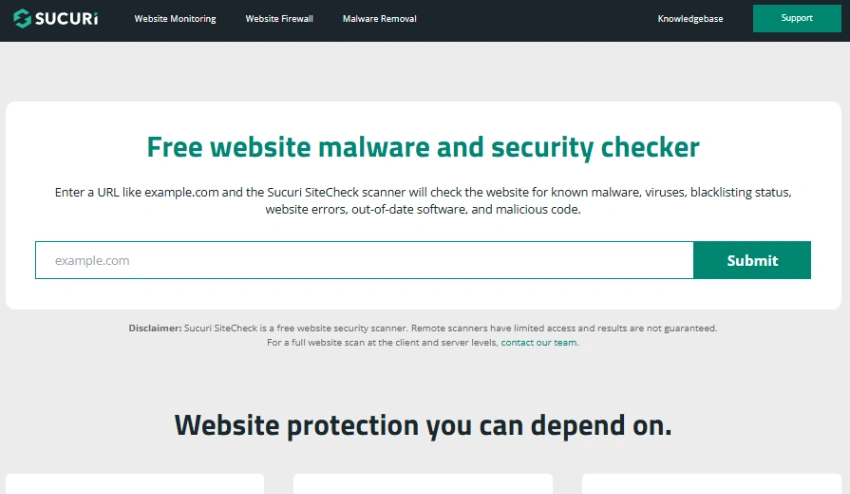
It is an especially handy tool when buying from a website for the first time or creating an account for the website. It checks for malware, spam, and security flaws. Owners can use this for their own website as well.
4. URLVoid
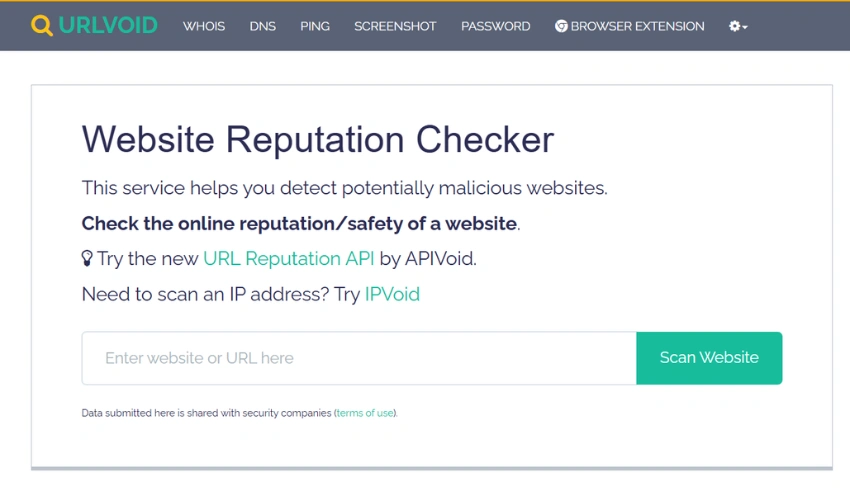
This tool uses multiple blacklists to report on the reputation of a domain and also provides age and ownership info.
5. URLScan.io
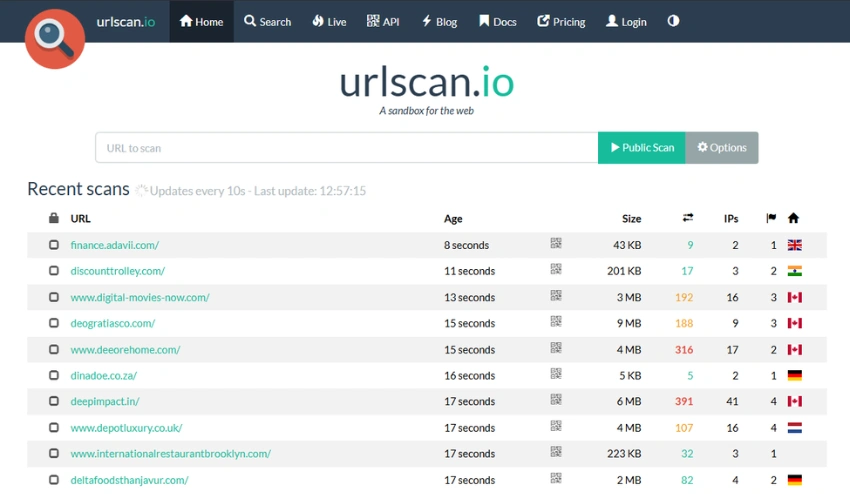
It takes a screenshot of the URL, then scans the page for malicious content, scripts, and network requests. This is a particularly great tool for phishing sites, as you get to see what the site looks like.
6. Have I Been Pwned
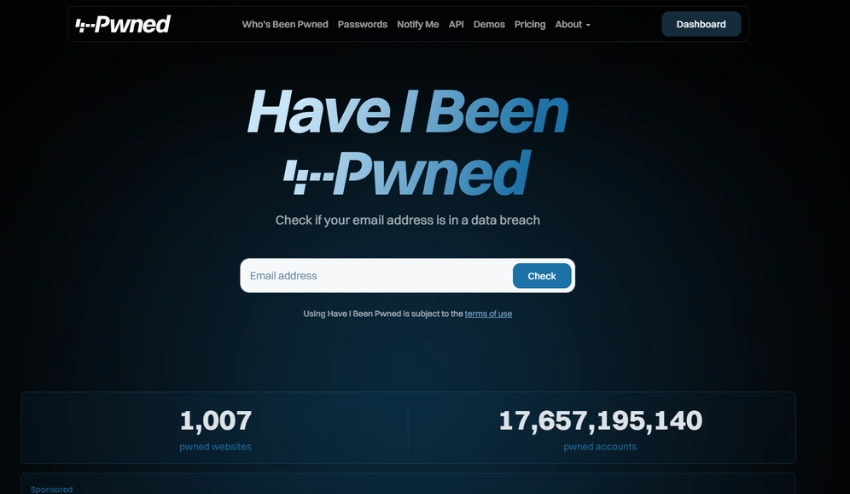
Not a URL checker, but directly relevant: if you’ve entered your email on a site that turned out to be compromised, HIBP will tell you whether your email appeared in a known data breach.
7. DarkScout Free Email Scan
Checks whether your email address has appeared in dark web breach databases, stealer log markets, and credential dumps that don’t surface in public breach repositories. Where HIBP covers publicly disclosed breaches, DarkScout’s scan reaches into underground markets where stolen credentials are actively traded. Useful for anyone who suspects they entered their email on a fraudulent or compromised site and wants to know whether their data is already circulating underground.
How to Check If Your Own Website Is Secure
If you own or run a website, the security checks you need to perform go significantly deeper than what visitors can see. Your responsibility extends to every user who trusts your site with their personal data.
1. Check Your SSL Certificate Configuration
Having an SSL certificate is the minimum. Having it properly configured is what matters.
Use SSL Labs’ free testing tool at ssllabs.com/ssltest to get a full report on your SSL certificate configuration. It grades your setup from A+ to F and identifies specific configuration issues: weak cipher suites, outdated TLS versions, certificate chain problems, and misconfigured HSTS settings.
Target an A or A+ grade. A B grade or below indicates configuration problems that expose your users to risk and your site to penalties from security scanners.
2. Scan for Common Vulnerabilities
Your site may have vulnerabilities that neither you nor your hosting provider is aware of. Regular scanning is the only way to catch them before attackers do.
Common website vulnerabilities in 2026 include SQL injection, cross-site scripting, old plugins and themes, poor directory permissions and exposed administration login screens. These common website vulnerabilities have been explained in detail with ways to check them in the common website vulnerabilities guide.
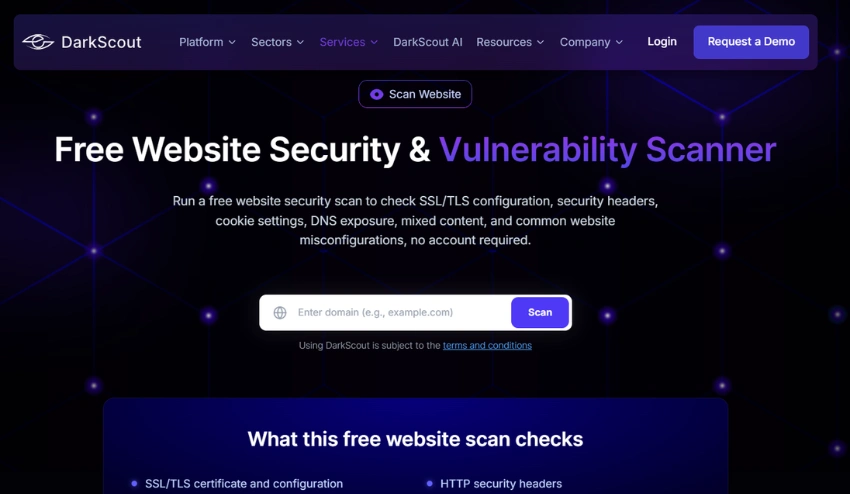
Use Darkscout’s website scanner and your hosting provider’s security scanning tools regularly. More comprehensive scanning with dedicated website-scanning tools provides deeper coverage for sites that handle sensitive customer data.
3. Check Your DNS and Subdomain Security
Forgotten or misconfigured subdomains are a significant security risk that many site owners don’t know they have. Attackers actively scan for subdomains pointing to resources that no longer exist, creating subdomain takeover opportunities. A subdomain you set up for a test environment three years ago and forgot about may still be pointed at infrastructure you no longer control.
Audit your DNS records and all active subdomains regularly. Subdomain finder tools allow you to enumerate your full subdomain footprint and identify anything that shouldn’t be publicly facing.
4. Review Your Security Headers
Security headers are an HTTP response header that tells browsers how to behave when accessing your site. They’re often incorrectly configured or absent.
Check your security headers at securityheaders.com. Important headers include:
- Content-Security-Policy (CSP): Controls which scripts and resources can load on your page
- Strict-Transport-Security (HSTS): Forces browsers to use HTTPS for your domain
- X-Frame-Options: Prevents your site from being embedded in iframes on other sites
- X-Content-Type-Options: Prevents MIME type sniffing attacks
Missing security headers are one of the most common website security mistakes that site owners make without realizing it.
5. Check for Malware and Injected Code
Attackers who compromise a website often inject malicious code that runs silently, harvesting visitor credentials or redirecting traffic. You may not notice it by looking at your site normally because it’s often targeted to specific visitors or specific pages.
Run regular malware scans through Sucuri SiteCheck, your hosting provider’s tools, or a dedicated website security platform. If you’re on WordPress, plugins like Wordfence or Sucuri Security add continuous monitoring.
Signs your site may already have been compromised: unexpected redirects, new pages you didn’t create, visitors reporting unusual popups, your site appearing on Google’s blacklist, or your hosting provider suspending your account. The guide on how to check if your website has been hacked covers the full detection and response process.
6. Monitor Your Domain for Abuse
Even if your own website is perfectly secured, attackers may register lookalike domains impersonating your brand to target your customers. They’ll create a site that looks exactly like yours, use it to harvest credentials from your users, and your organization’s reputation takes the damage.
Watch out for new domain names registered that match yours. Whether your domain or brand name appears in Phishing reports using resources such as PhishTank and Google Transparency Report. You can even use Google Alerts with your domain name to monitor unusual occurrences.
At a deeper level, monitoring for your organization’s exposure in underground markets catches the credential theft and brand abuse that surface-level tools miss. DarkScout’s Dark Monitoring service continuously scans dark web forums, credential markets, and phishing databases for signals related to your organization’s domains and brand, alerting your team when your customers or employees are being targeted through fake sites or stolen credentials.
7. Verify Your DMARC Configuration
If your domain is used to send email, DMARC configuration directly affects whether attackers can convincingly impersonate your brand in phishing emails sent to your customers.
Check your DMARC record at dmarcanalyzer.com or mxtoolbox.com/dmarc.aspx. A DMARC policy set to p=reject means emails failing authentication checks claiming to come from your domain will be blocked. A policy of p=none means those emails go through anyway. Most organizations are surprised to discover their DMARC is in monitoring mode or missing entirely.
What to Do If You’ve Already Entered Data on a Suspicious Site
Act immediately. The damage window is short.
If you entered a password: Change that password right now on the legitimate version of the site. Change it on every other account where you use the same password. Enable MFA on every affected account immediately. Check whether any sessions are open on devices you don’t recognize and sign out of all active sessions.
If you entered payment card details: Call your card issuer immediately using the number on the back of the card, not a number from any email. Report the card as potentially compromised and request a replacement. Monitor your statements closely for the next 30 to 90 days. Most card issuers allow you to set real-time transaction alerts through their app.
If you entered personal information: Place a fraud alert with the credit bureaus (Equifax, Experian, TransUnion in the US). This makes it harder for someone to open new accounts in your name. Consider a credit freeze if the information entered was extensive.
Check whether your email has been compromised: If you put in your login and password into the fraudulent site, you can verify with Have I Been Pwned that your account has been compromised. If your account has been compromised, then you should carry out the standard response to the particular data breach in question.
Report the site: Report phishing sites to Google at safebrowsing.google.com/safebrowsing/report_phish/, to the Anti-Phishing Working Group at reportphishing@apwg.org, and to the FBI’s IC3 at ic3.gov. Reporting helps protect other users who might encounter the same site.
DarkScout’s free email scan checks your address against dark web breach databases and underground credential markets that standard tools don’t reach.
👉Check Your Exposure Free →