
Most of us connect to Wi-Fi without thinking. You just have to tap a network name, then you type in a code and you are online. It is that code which is referred to as a network security key and it has a significantly larger part to play than one would think.
The first point of confusion is that many users are confused when the device requests a network security key, rather than Wi-Fi password. Are they the same thing? Where do you find it? And what happens if it’s wrong?
This guide will give you the definition of a network security key, why it is important and how to locate or manage it in plain, simple terms. None of the technical background required.
What is Network Security Key?
A network security key is simply the password which allows your device to access a Wi-Fi network without any harm. Imagine it as the key to your online door: without this key there will be no one who can enter your door. In common language, it typically means the same thing as your Wi-Fi password, however, the name is given to it because of the way the network encrypts the data to ensure network security.
Example: In your case of setting up a home router, the network security key is the password on the router label or one of your own.
Network Security Key vs Password: Are they similar?
A lot of individuals believe that network security key is an equivalent of Wi-Fi password- in most cases, they are right. The distinction is slight: network security key is the code that is applied by the network encryption protocols (such as WPA2 or WPA3), but the term password may be used more broadly to any account or login.
Practical advice: Use your network security key as any password would be kept secret, changed where necessary and should not be shared freely.
You May Also Like: Cyber Security Examples and Practices to Stop Data Breaches
Why the Network Security Key Matters
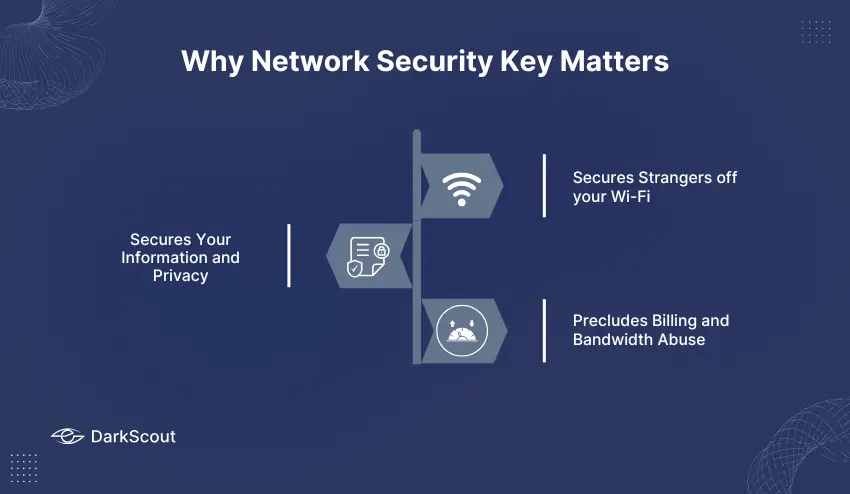
1. Secures Strangers off your Wi-Fi.
The first thing that will protect you against unwanted users is your network security key. In its absence, anyone in the Wi-Fi range would be able to access your network and slow down your internet or access shared files. The key is strong and only devices that are trusted can be added.
Scenario: Let us say that your neighbor is attempting to steal your Wi-Fi, a network security key blocks that.
2. Secures Your Information and Privacy.
The data that is sent between your devices and the router is encrypted with a network security key. This stops the outsiders to pick up sensitive data such as passwords, messages or online transactions. A decent key can keep your online business confidential even when you are in company.
Practical tip: WPA2 or WPA3 encryption should always be used to ensure maximum security of data.
3. Precludes Billing and Bandwidth Abuse
Unauthorized users may use your bandwidth, reduce your connection. In other instances, additional use of data may even hike your ISP bills, particularly with metered plans. A network security key will help to make sure that only your devices access your internet resources.
Sample: Your roommate or visitor is allowed to temporarily connect, but strangers are blocked automatically.
Network Security Key types (Protocols).
1. WEP — Old and Not Recommended
WEP (Wired Equivalent Privacy) was one of the earliest Wi-Fi security protocols. Although this was useful at the beginning of the 2000s, it is now seen as a weak one and easily hackeable. WEP is no longer used by most modern routers, although it may be used on very old devices.
Practical tip: Do not use WEP, in case your router provides it, change it to WPA2 or WPA3.
2. WPA / WPA2 — Common Today
The most common security protocols currently used are WPA (Wi-Fi Protected Access) and WPA2. WPA2 is particularly popular since it allows a high level of encryption and is compatible with most devices. With WPA2, your network security key secures your data, and unauthorized users are locked out.
Example: WPA2 security has a typical 12-character password that contains letters, numbers, and symbols.
3. WPA3 — Newest and Strongest
The latest standard is WPA3, which has more security features, including better encryption and prevention of password-guessing attacks. Although newer routers have the capability, not everything is compatible as yet. WPA3 will make your network future-proof.
Practical advice: In case your router supports WPA3, turn it on it is the best protection available at the moment.
You May Also Like: What Is a Secure Web Gateway? Features, Benefits, Types, and Future Trends
How to Find Your Network Security Key

On Your Router or Modem
The network security key is printed on a label, which is normally located at the back or bottom of most routers. It can be named as Wi-Fi Password, Network Key or wireless key. In case you have altered it, go to your router administration dashboard by logging in using a web browser, the existing key can be found in the wireless settings area.
Tip: It is good to have a copy of your key somewhere safe; you will need it when adding new devices.
On a Windows PC
- Click the Wi-Fi icon on the system tray.
- Open Network and Internet settings, Wi-Fi, and manage Known Networks.
- Click on your network and go to properties and select Security, and Show Characters.
- You will see the key to the security of your network, and it will be easy to connect other devices.
On a Mac or iPhone/iPad
- Mac: Open Keychain Access, find your Wi-Fi network, and select the box to display the password (you might need to enter your Mac password).
- iOS/iPadOS: Select Settings Wi-Fi Tap your network Share Password with another Apple device.
- This is a safe way and does not entail you having to log into the router.
On Android Devices
Android versions that are more recent enable you to see your network key in a QR code:
- Enter Settings, Network and Internet, Wi-Fi.
- Click the network you have connected to and choose Share.
- There are two ways: scan the QR code or type in the key shown.
Practical hint: Check the router label or dashboard, as explained above, in case your device does not display the key.
Real-Life Scenarios & Troubleshooting
What to Do If It Says “Incorrect Key”
There are times when your device may refuse to accept a network security key although you typed it accurately. This normally occurs because of typing errors, passwords that have been altered or security measures that do not match. Check the key twice, make sure that your device supports the encryption used by the router (WPA2/WPA3) and restart both your device and router.
Example: Connection can be avoided by typing a lower case l in place of an upper case I.
Forgot Your Key — Can’t Find It Anywhere?
In case you have lost your network security key:
- Compare the router label The default key is usually printed on the router.
- Get into the router dashboard through web browser and get or reboot it.
- Call your ISP in case the router was supplied by the company, and you are unable to access it.
Practical advice: Once reset, change all your devices with the new key as soon as possible to prevent being unable to connect.
Devices That Refuse to Connect
The devices are older and might not be compatible with the newer protocols, such as WPA3. In such cases:
- Enable WPA2 in your router temporarily.
- Verify the firmware in your devices.
This is to make sure that every one of your devices can be connected to the network without necessarily losing security.
Best Practices for Network Security Keys
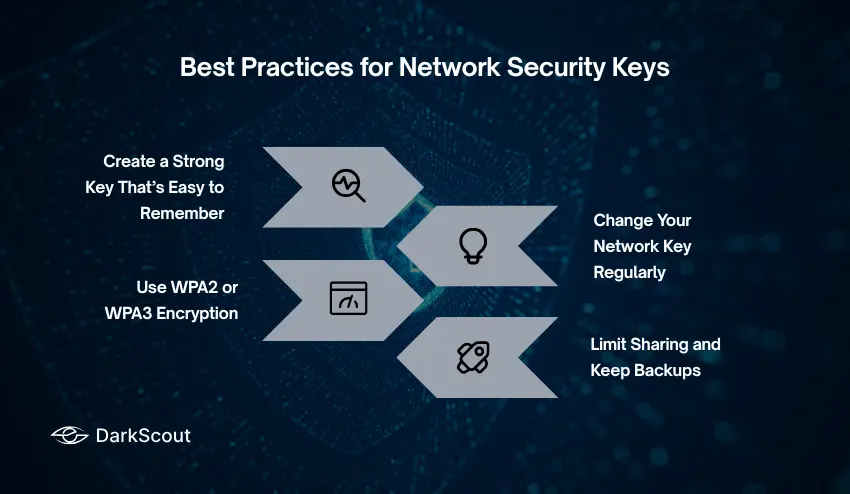
- Create a Strong Key That’s Easy to Remember
- Use a mix of letters, numbers, and symbols or a passphrase.
- Example: Instead of “mypassword123,” use “CoffeeDuck$Blue7Tree.”
- Avoid personal info like birthdays or names that can be guessed.
- Change Your Network Key Regularly
- Update every 6–12 months to prevent unauthorized access.
- Change immediately if someone leaves your home or office.
- Internal link: Refer to “How to Find Your Network Security Key” for updates.
- Use WPA2 or WPA3 Encryption
- Select WPA2 or WPA3 in your router settings.
- Avoid WEP — it’s outdated and insecure.
- Check your router manual or ISP support if unsure.
- Limit Sharing and Keep Backups
- Only share the key with trusted users.
- Keep a written or digital copy in a safe place.
- Example: Store securely in a password manager or encrypted note.
Conclusion
A network security key is not a password, it is a key to the Wi-Fi security, privacy of your data and a fast internet connection. Knowing its definition, its functionality, and its location will enable you to protect your network with a sense of certainty.
With the best practices that we have described, namely, the use of strong and unique keys, the regular renewal of keys, and the selection of appropriate encryption, you can avoid unauthorized access and have a safer online experience.